Photo questions: 9 ways customers can show your AI assistant what they mean
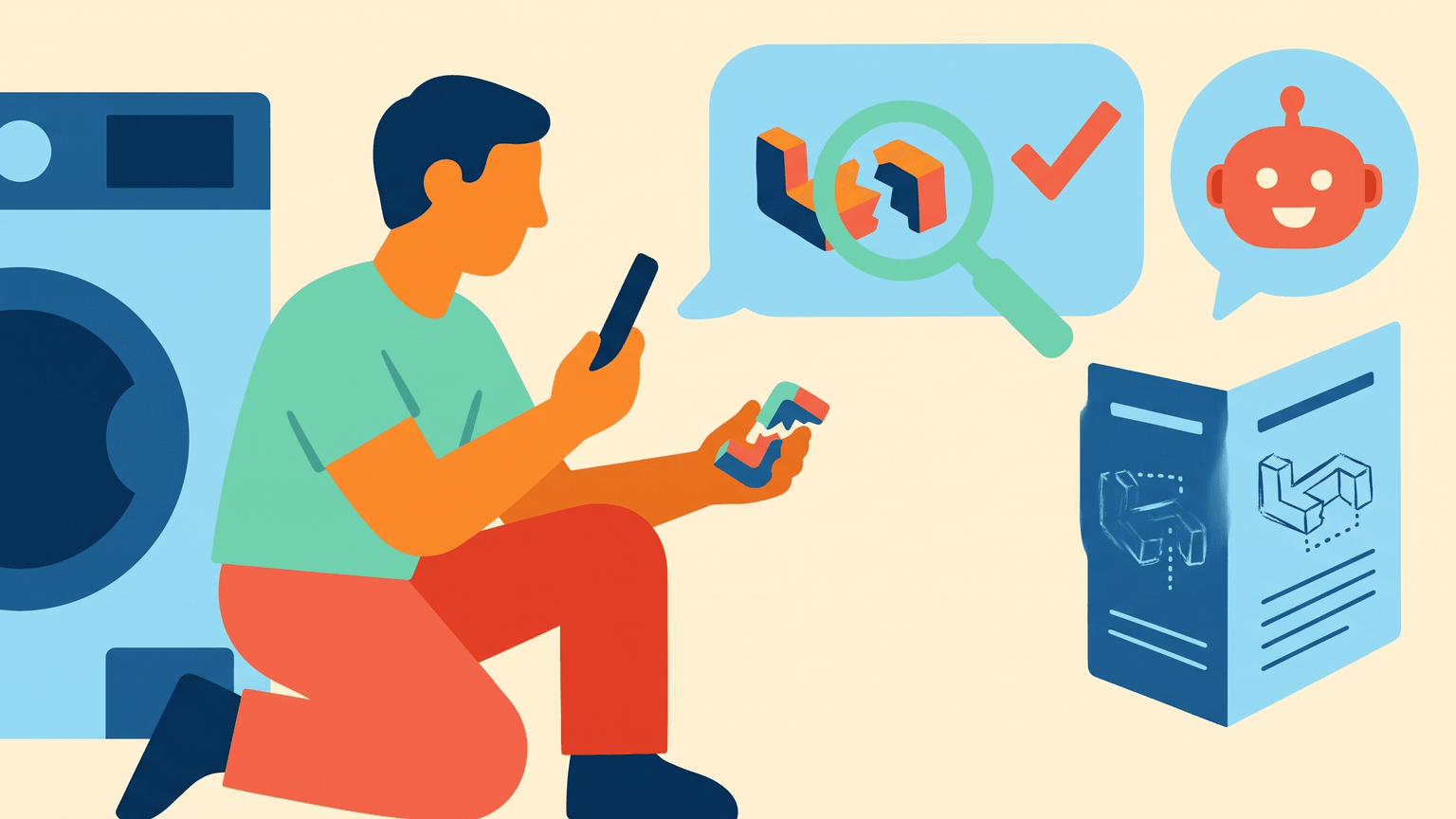
Some questions are hard to put into words. The little plastic thing under the handle snapped. The box arrived like this. Can you do this colour? A photo answers them before the customer has finished typing. Your BotChap assistant can now take that photo, read it, and answer from your own content. This guide covers nine practical ways businesses use it, how it works behind the scenes, what it costs, and how to set up your content so the answers are good.
How photo questions work
When photo questions are on, a camera button appears in the message bar of your chat widget. The customer picks a photo or takes one, adds a line of text if they want, and sends it. On Instagram and Messenger they simply send the photo in the conversation.
Behind the scenes, three things happen. First, the photo's metadata is removed, including any location a phone camera adds. Second, the assistant writes a short description of what is in the photo, copying any model number, part number or text it can read. Third, that description is used to search your knowledge base, and the assistant answers with both the photo and the matching content in view.
The photo itself is not kept. Once the answer is written, it is discarded. Only the short text description stays in the conversation, under the same logging and encryption settings as any other message.
Nine ways to use it
1. Identify a spare part. A customer photographs a worn fitting, a filter or a cartridge. The assistant reads the number stamped on it, finds it in your parts list and replies with the replacement and its price. This works best when your uploaded parts list includes part numbers exactly as they appear on the parts.
2. Read a model plate. "Which filter fits my machine?" is impossible to answer without the model. A photo of the model plate gives the assistant the exact number, which it can match against your compatibility table.
3. Handle a damaged delivery. A parcel arrives crushed. The customer sends a photo, and the assistant explains your damaged-delivery policy from your returns document and tells them exactly what happens next. The description of the damage is saved in the conversation, so you have a record when you follow up.
4. Quote a repair. Handymen, appliance repairers and car detailers get vague requests all day. A photo of the leaking pipe, the cracked tile or the scratched bumper lets the assistant say which service it is, give your standard price range from your price list, and offer a visit.
5. Match a look. A client sends a screenshot of nail art, a haircut or a brow shape. The assistant tells them which of your services it is, what it costs and how long it takes, and offers a booking. Your service menu needs clear names and descriptions for this to work well.
6. Help guests in a rental. A holiday guest photographs the hot water panel, the coffee machine or the thermostat. The assistant recognises it from your house manual and explains which button to press, at two in the morning, without waking you.
7. Check the right product before buying. "Is this the right size for my bike?" with a photo of the old part saves a return later. The assistant compares what it sees with your size guide and says so when it cannot be sure.
8. Triage a garden or plant problem. Garden centres and landscapers get photos of yellowing leaves and patchy lawns. The assistant can point to the relevant care sheet or product from your content and suggest a consultation for anything it cannot judge from a photo.
9. Plan an event or space. Venues and decorators receive photos of rooms with the question "what could you do here?". The assistant can describe which of your packages fits the space and collect the details you need for a quote.
Setting it up
On your website. In the BotChap editor, open the Window tab, scroll to Features and switch on File Upload. The camera button appears in your widget straight away. Photo questions are available on any paid plan, with the BotChap AI assistant as your chatbot backend.
On Instagram and Messenger. Once you connect a channel, photos sent there are answered automatically. Messaging channels are part of the Growth and Scale plans.
What it costs. Reading a photo is one extra AI request, billed the same way as a reply. If your website chatbot uses AI Credits, it comes from your credits. If it uses your own API key, your own provider bills it. Instagram and Messenger always use AI Credits.
Getting good answers
The assistant answers from your content, so photo questions are only as good as what is in your knowledge base. A few habits make a real difference.
Put identifiers in your documents. Part numbers, model names and product codes should appear in your uploaded documents exactly as they appear on the physical item. That is what lets a photo of a label land on the right answer.
Name your services the way customers see them. If clients send photos of balayage, your service menu should say balayage, not just "colour service, long hair".
Write the rules down. Returns, damage claims and warranty conditions should be in a document, so the assistant can explain the policy instead of improvising.
Ask for the right photo. Mention in your welcome message or system prompt what makes a useful photo: the model plate, the whole item, good light. When a photo is unclear, the assistant already asks for a clearer one or a photo of the label.
Limits worth knowing
One photo per message. JPG, PNG and WebP photos are accepted, up to a reasonable size, and very large photos are scaled down before they are read.
It reports what it sees, not what it assumes. A brand or number that is not visible is described as not visible. When it cannot be sure, it says so.
It is not a substitute for a professional. It answers questions about your business from your own content. If your customers might send photos of health or safety problems, such as a skin reaction or a gas fitting, add a line to your system prompt telling the assistant to recommend they see a professional.
Inappropriate photos are refused. An offensive or explicit photo gets a short refusal and counts toward the same abuse protection as abusive text, which can end the chat.
Related reading
- Photo questions feature page, setup and FAQ
- How to answer Instagram and Facebook Messenger DMs with your BotChap AI assistant
- How to keep a BotChap knowledge base grounded in your business content
A photo is often the fastest way for a customer to explain a problem. Let your assistant see it. Try BotChap free